How to Monitor a Shopify Store with BugBug?
Written byDominik Szahidewicz


Updated: June 21, 2026View as Markdown
Your Shopify store goes down, or worse — it half-works. The checkout stalls. The cart silently swallows add-to-cart clicks. The discount code field accepts the input but doesn't apply anything.
None of this shows up on uptime monitoring. The store is "up." Your status page is green. The first person who knows about the failure is the customer who abandoned their order.
This guide walks you through setting up real functional monitoring for a Shopify store using BugBug — no code required. You'll cover the five flows that break most often (cart, checkout, discount codes, registration, password reset), handle Shopify's three main automation blockers (bot protection, cookie consent, checkout DOM isolation), and have monitoring running with Slack alerts in under two hours. If you're on a developer team evaluating Playwright instead, there's an honest comparison of both approaches below.
Also check:
These are the two tools most Shopify teams end up evaluating. Before diving into setup, here's where they actually differ — so you can decide upfront which approach fits your team.
| BugBug | Playwright | |
|---|---|---|
| Setup time | Under 2 hours | 1–2 days |
| Coding required | No | Yes — JavaScript / TypeScript |
| Who maintains tests | Anyone on the team | Developer or QA engineer |
| Bot protection method | Real browser fingerprint | HTTP signature headers + stealth plugin |
| Consent popup handling | Recorded step or JS cookie | page.addLocatorHandler() or fixture |
| Cross-browser coverage | Chromium only | Chromium, Firefox, Safari |
| Mobile testing | No | Yes — viewport emulation |
| Email flow testing | Built-in via bugbug-inbox.com | Requires separate tooling |
| Scheduling | Built-in cloud runs | CI cron job required |
| Debugging | Screenshots, step replay | Full trace viewer, network logs, DOM snapshots |
| Free tier | Yes — unlimited tests, local runs | Open-source; CI hosting costs apply |
| Network request monitoring | Via failure screenshots | Native API monitoring + request interception |
Choose BugBug if your team doesn't have a developer owning a test codebase, you need monitoring running today, or email flow validation is part of what you're testing.
Choose Playwright if your store has aggressive bot protection requiring HTTP header signing, you need cross-browser or mobile coverage, or your checkout branches significantly and needs programmatic test logic.
Both are legitimate. The rest of this guide covers the BugBug setup end to end.
Shopify stores aren't like standard web apps. The platform introduces three obstacles that standard browser automation doesn't account for.
Bot protection — Shopify evaluates incoming traffic based on IP reputation, request patterns, and browser fingerprinting. Monitoring that runs from cloud infrastructure gets treated with suspicion — you can end up with 429 Too Many Requests on cart API calls, Cloudflare challenge pages, or the subtler failure where the page shell renders but interactive elements are broken. The search returns zero results. The mini-cart notification never fires. No error. Just wrong.
Cookie consent interception — Shopify's privacy SDK fires on every page load. The consent banner appears and blocks script execution until the visitor accepts. If your test doesn't handle this, it doesn't fail loudly — it just stalls, times out, or clicks the wrong element because the banner was sitting on top of it.
Checkout DOM isolation — Shopify's checkout runs on checkout.shopify.com, a completely separate domain with its own markup. The selectors and flows you build on the storefront don't transfer. And Shopify periodically updates the checkout structure — selectors that worked last quarter may be gone today.
Each section below covers one of these problems and how to handle it in BugBug.
BugBug runs tests in a real Chromium browser, not a headless instance. Real browsers present a full browser fingerprint: correct user-agent strings, standard canvas rendering, realistic WebGL signatures, all the properties that bot detection fingerprinters check. Headless Playwright (without the stealth plugin) leaves fingerprint gaps that Shopify's bot detection notices.
For most Shopify stores, BugBug's real browser execution passes bot detection without any additional configuration.
Cloud runs originate from shared datacenter IP ranges. Even with a real browser fingerprint, some Shopify stores with aggressive Cloudflare configurations will still rate-limit or challenge requests from those IPs.
If your cloud-scheduled BugBug tests return a Cloudflare challenge page or a blank storefront:
It's worth knowing the approach Playwright teams use, because it's relevant context if your store has truly aggressive bot protection that local runs and frequency adjustment can't resolve.
Shopify provides official HTTP crawler-signature headers (X-Shopify-Access-Token and related headers) that authorize monitoring traffic at the infrastructure level. Teams using Playwright inject these headers via their secrets manager into every request — bypassing Cloudflare IP checks entirely, regardless of the originating IP.
BugBug doesn't support HTTP header injection. If your Cloudflare configuration is strict enough that it blocks datacenter IPs regardless of browser fingerprint, Playwright with header signing is the only clean long-term solution. For most Shopify stores, BugBug's real-browser fingerprint is sufficient and requires no configuration — but that's the trade-off to know upfront.
The cookie consent banner is invisible in manual testing — you dismissed it weeks ago and your browser remembers. In automated tests, it appears every time and silently breaks flows by sitting on top of the elements your test is trying to click.
BugBug handles this at the recording level rather than with a programmatic handler.
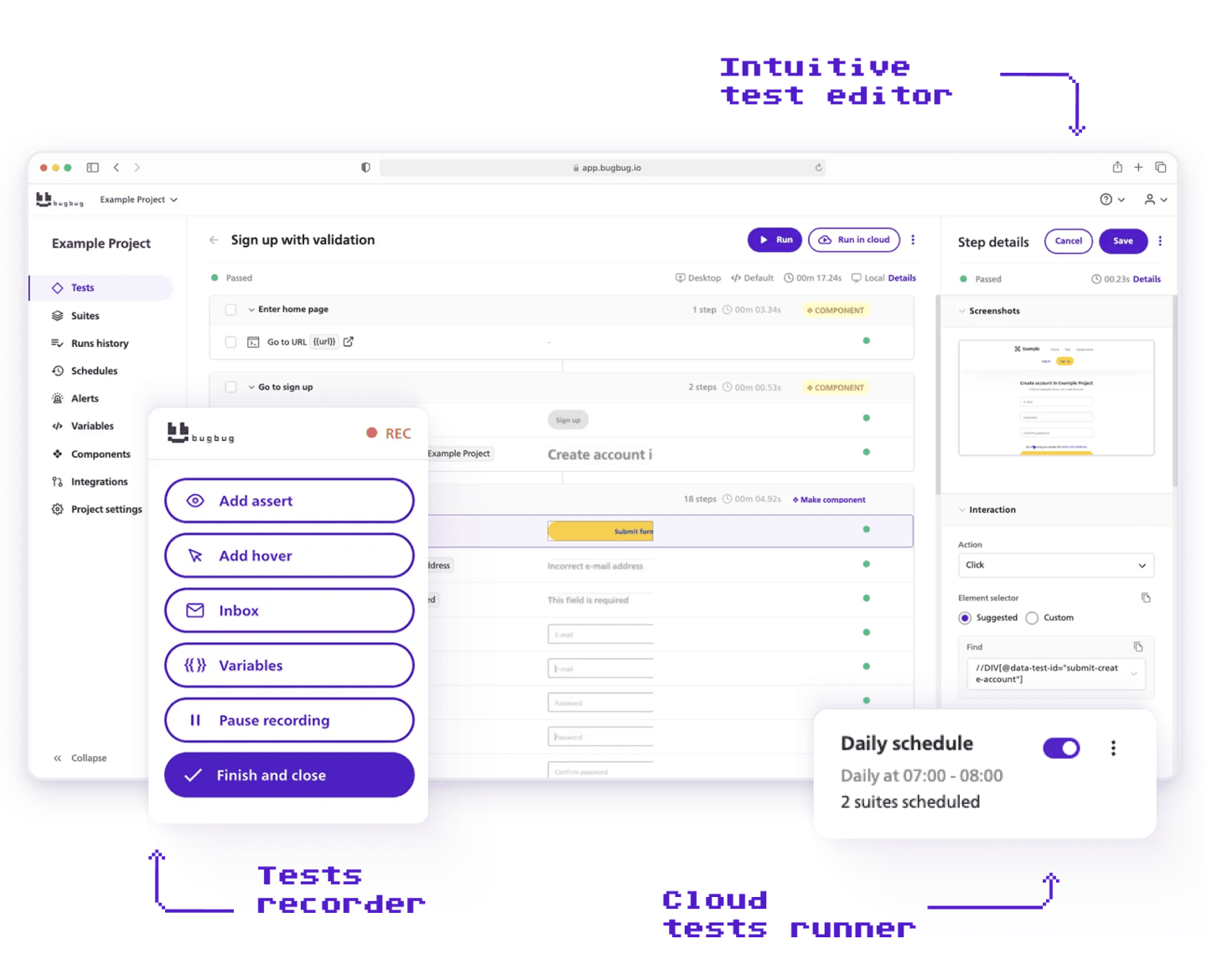
Open BugBug, start recording, and your first action is to click the consent banner's close button or accept all. BugBug records this as a real test step. It runs at the start of every test execution.
This is the simplest approach and works reliably. The only maintenance required: if your consent banner's close button changes (theme update, CMP provider change), you update that one step.
One thing to check: make sure the consent step is set to non-blocking if the banner fails to appear. If the consent cookie is already set in the test browser session, the banner won't show — and a hard assertion on the close button will fail the test before it's started. In BugBug, mark the consent step as optional so the rest of the test runs regardless.
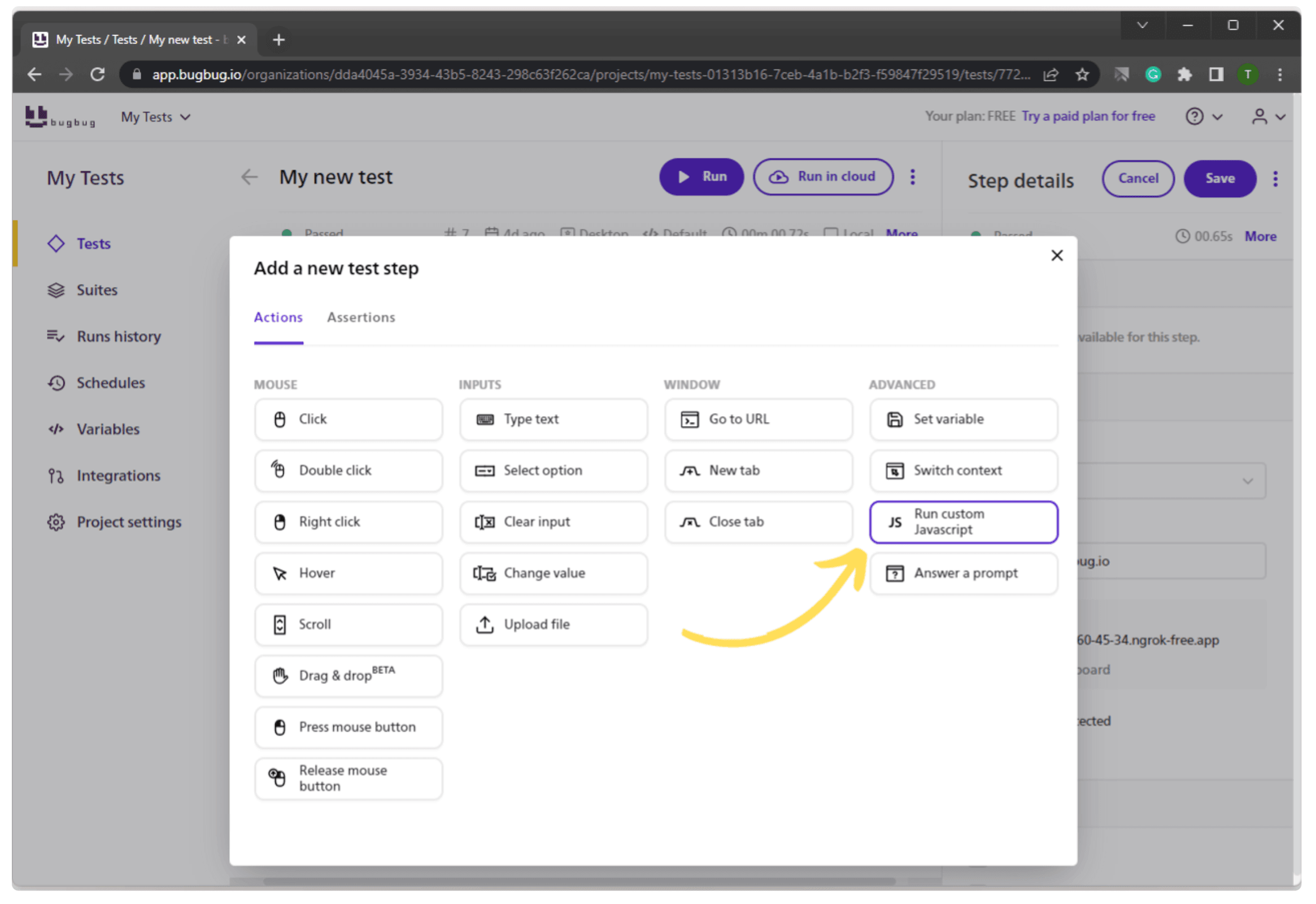
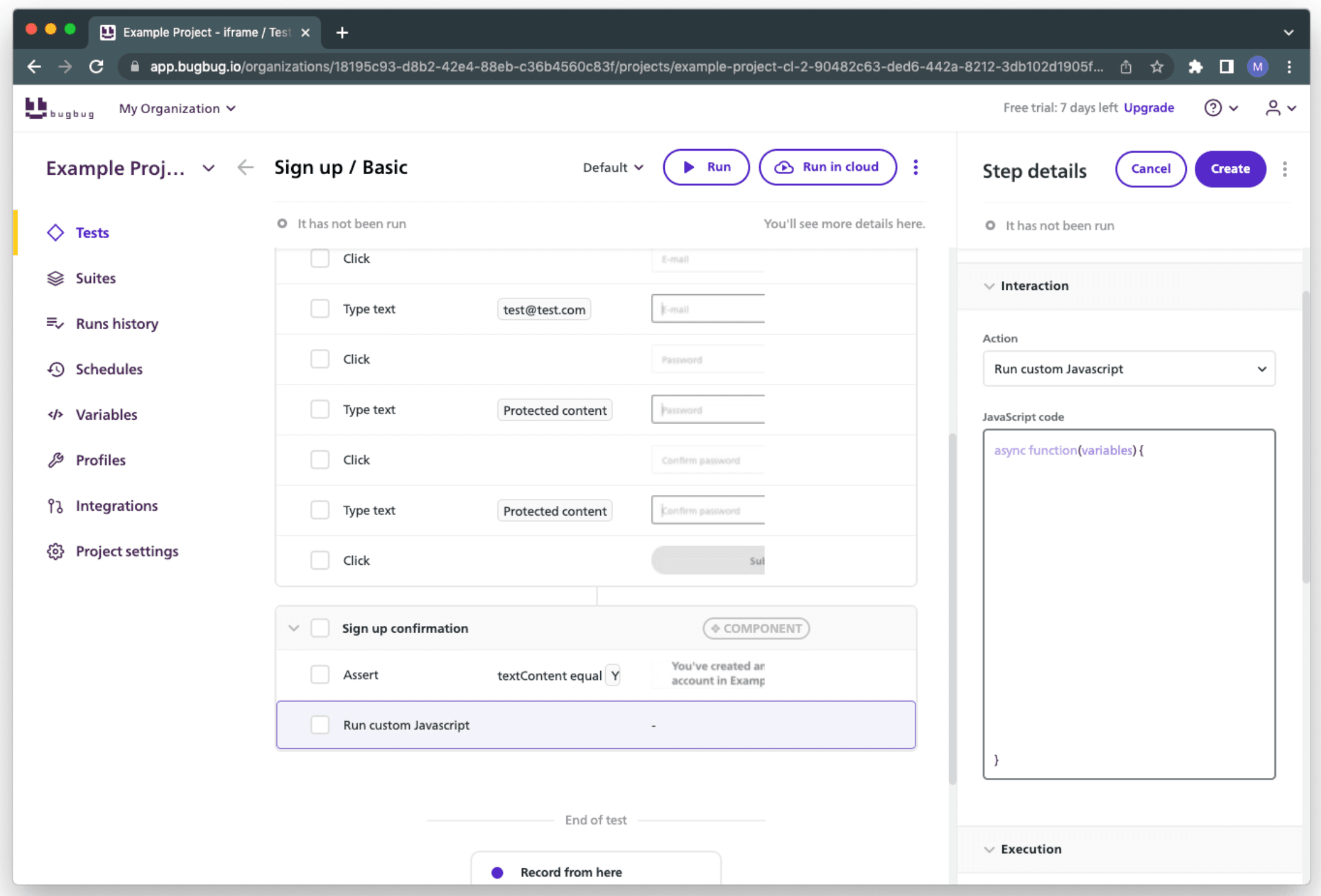
For Shopify stores using the native Shopify Privacy API, the consent state is stored in a cookie. Set it before navigation and the banner never fires.
BugBug supports Custom JavaScript steps. At the start of your test, add a JS step:
document.cookie = "_shopify_y=accepted; domain=.yourstore.myshopify.com; path=/";
The exact cookie name varies by your Consent Management Platform. Check your browser's DevTools → Application → Cookies after manually dismissing the banner to find the one yours uses.
This is the cleaner option if multiple test suites share the same start URL and you don't want to record the dismissal in every one of them.
👉 Check our docs for a more in-depth description of JavaScript actions.
Checkout is the flow that matters most and the one you most want to avoid running against real payment processing.
Shopify provides a test payment gateway for stores in development mode. It accepts a fixed test card number and processes a full checkout flow without real payment.
Enable it: Shopify Admin → Settings → Payments → Choose third-party provider → Bogus Gateway.
Test card details:
Don't use your own account for automated checkout monitoring. Create a dedicated test customer in Shopify Admin, use it consistently across all checkout tests. Test orders are easy to filter out, and if the account gets flagged by Shopify's fraud detection it doesn't affect your own access.
If you need to run checkout monitoring against your live production store because staging doesn't match production exactly, automate order cleanup with Shopify Flow:
Every checkout test run creates a real order. Flow immediately refunds and cancels it. Your inventory is unaffected, the checkout flow is real end-to-end, and your order admin stays clean. You'll need a company card attached to the test account.
With bot protection handled, the consent popup managed, and a safe checkout strategy in place, here's how to set up the five flows every Shopify store should be monitoring.
Prerequisites before you start:
This is your most important test. It covers the most common silent failure modes: cart drawer not opening, add-to-cart not triggering, express checkout buttons missing from the product page.
Steps to record:
/cartWhere to add assertions:
Suggested schedule: Every 30 minutes from BugBug cloud.
Discount logic is fragile — especially when Shopify Functions, automatic discounts, and app-based discounts interact. An update to any one of them can silently break the others.
Steps to record:
Create a permanent test discount code. Go to Shopify Admin → Discounts and create a code with no expiry, unlimited usage, and a fixed amount off. Don't use a promotional code in your monitoring tests — they expire, hit usage limits, and your test starts failing for the wrong reason.
This is where BugBug's built-in email testing via bugbug-inbox.com makes the test possible without external tooling.
Steps to record:
/account/register)What this catches: Klaviyo or Postmark configuration failures, Shopify email template errors, broken transactional flows after the new customer accounts migration.
Steps to record:
/account/loginWhat this catches: Reset token generation failures, email delivery failures, broken account links after Shopify's new customer accounts rollout.
Your full checkout test. Run it once per hour — more frequently than that and the Flow cleanup creates noise.
Steps to record:
What this catches: Payment provider script failures, shipping rate calculation errors, post-purchase app conflicts, order confirmation page rendering failures after app updates.
Automate your tests for free
Test easier than ever with BugBug test recorder. Faster than coding. Free forever.
Get started
Once your tests are scheduled, set up Slack notifications: BugBug → Settings → Integrations → Slack. Add your webhook URL and select which test suites trigger alerts. Point it at your #alerts or #qa channel.
When the checkout test fails at 2am, you see it before your first customer does.
Also read how to set up Slack notifications.
Playwright is Microsoft's open-source browser automation framework. You write tests in JavaScript or TypeScript (Python and C# are also supported). It's powerful, flexible, and designed for teams with developers who can own and maintain a test codebase.
A basic Playwright checkout test for Shopify looks something like this:
test('checkout flow completes successfully', async ({ page }) => {
  await page.goto('https://yourstore.myshopify.com/products/test-product');
  await page.click('[data-testid="add-to-cart"]');
  await page.click('[data-testid="checkout-button"]');
  await page.fill('#email', 'test@example.com');
  await page.fill('#shipping-address-address1', '123 Test Street');
  // ... continue through shipping and payment
  await expect(page.locator('h1')).toContainText('Thank you for your order');
});
Where Playwright works well for Shopify monitoring:
Honest limitations for Shopify teams:
Test passes locally, fails in cloud. Check the failure screenshot in BugBug. If you see a Cloudflare challenge page or near-empty storefront, it's IP-based bot protection. Reduce run frequency, or keep that test on local-only scheduling.
Add-to-cart step passes but cart count stays at 0. The cart API call is being blocked or the step isn't completing correctly. Try with a bare test product with no app logic attached. If you see a 429 response in the failure screenshot, that confirms the cart API is being rate-limited at the network level — this is the scenario where reducing cloud run frequency or switching to local runs resolves it.
Consent banner click fails intermittently. The banner renders at slightly different times depending on script load order. Add a "Wait for element" step before the banner click: wait for the close button to be visible before clicking. Learn more about waiting conditions.
Checkout fails at the shipping step with "No shipping rates available." Your test address isn't valid for your configured shipping zones. For UK stores: use a full postcode from within your delivery region. For US stores: a real city/state/ZIP combination that matches your carrier settings.
Discount code shows "not valid." Verify the code in Shopify Admin → Discounts. Check it hasn't hit a usage limit or expired. If you used a promotional code in the test — replace it with a permanent monitoring-only code.
Order confirmation page doesn't render after checkout. A post-purchase upsell app is conflicting with the confirmation page. Disable your post-purchase apps temporarily and rerun to confirm.
The five tests above cover the failures that cost you customers. Not all failures — but the ones that happen regularly, produce no visible error, and that customers don't report until they've already left.
Set them up once. Schedule them. Connect Slack alerts. Then stop manually checking your store each morning and let the automation tell you when something breaks.
If your team is on Chrome and wants monitoring running today, BugBug's free plan covers local test runs with unlimited tests — no credit card required. Cloud-scheduled runs are on paid plans.
Happy (automated) testing!
Your next release. Properly tested.
Join 1,200+ QA teams that automated their regression coverage with BugBug.

Dominik Szahidewicz is a Software Quality Evangelist specialising in quality assurance, test automation, and modern software testing practices. He creates practical, research-driven content that helps QA professionals, developers, and product teams improve test coverage, automate repetitive testing, and release more reliable web applications.
Drawing on his experience in technical writing, data analysis, and application consulting, Dominik translates complex testing concepts into clear, actionable guidance. His areas of interest include end-to-end testing, no-code test automation, regression testing, and the use of AI in software quality assurance.
Join thousands of QA experts. Subscribe to our newsletter.
Get more testing tips and product related content. Zero spam.
Discover the essential QA tester skills for 2026! Learn the technical and soft skills required to excel as a QA Tester.
Learn how to automate regression testing without devs or QA. Discover a risk-based strategy and practical workflows.
Build a CI/CD testing pipeline in 30 minutes with BugBug. Learn how to run reliable E2E smoke tests on every PR, block bad merges, and scale safely.
Build an effective QA strategy aligned with your business goals. Explore best practices in quality assurance and test automation.
Discover how to calculate ROI for test automation with easy formulas and practical examples. Learn to evaluate costs and track results effectively.
Read this comprehensive guide on how to choose the right CI/CD tool. Selecting the tool that aligns with your project is essential.
Learn how to extend low-code testing with JavaScript to add advanced logic, API validation, and dynamic assertions without testing framework.
Learn how to create a test plan for the testing process of your web application. Discover how to write a test plan with examples in the article.
Discover the causes and impact of flaky tests, and learn effective strategies to identify and fix them for reliable software performance.